Atlassian identity provider
PolicyArc uses Atlassian as a pass-through identity provider: when a user signs in, PolicyArc redirects them through Atlassian's OAuth 2.0 (3LO) flow and accepts the resulting identity. PolicyArc never sees or stores their Atlassian password.
You'll create an OAuth 2.0 integration in the Atlassian Developer console, scope it for Jira, then hand the resulting client ID and secret to PolicyArc.
- An Atlassian account that can create developer apps for your org.
- Access to the Atlassian Developer console.
- The PolicyArc admin portal open in another tab.
Step 1 — Pick Atlassian in the Add Identity Provider screen
In the Admin Portal, go to Identity → Add identity provider and pick Atlassian from the provider list.
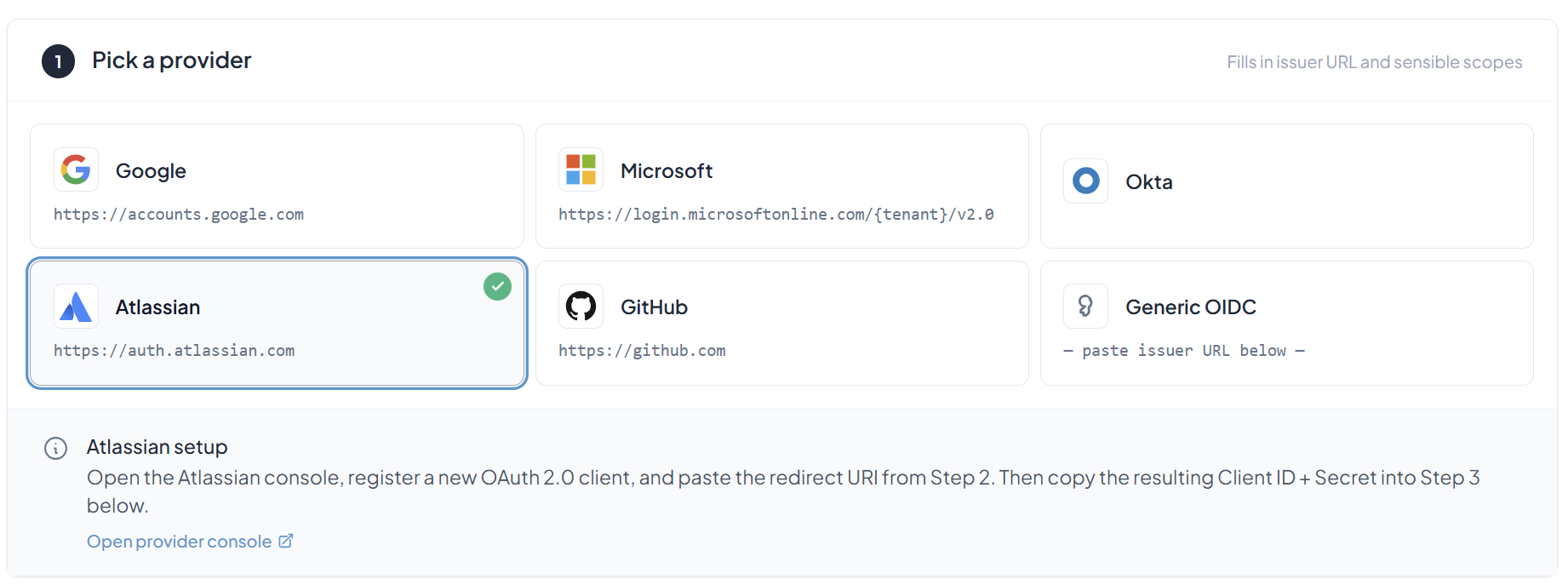
Keep this tab open — you'll come back to it after you create the integration in Atlassian.
Step 2 — Open the Atlassian provider console
Click Open provider console. Atlassian will ask you to sign in (or pick an account if you're already logged in).
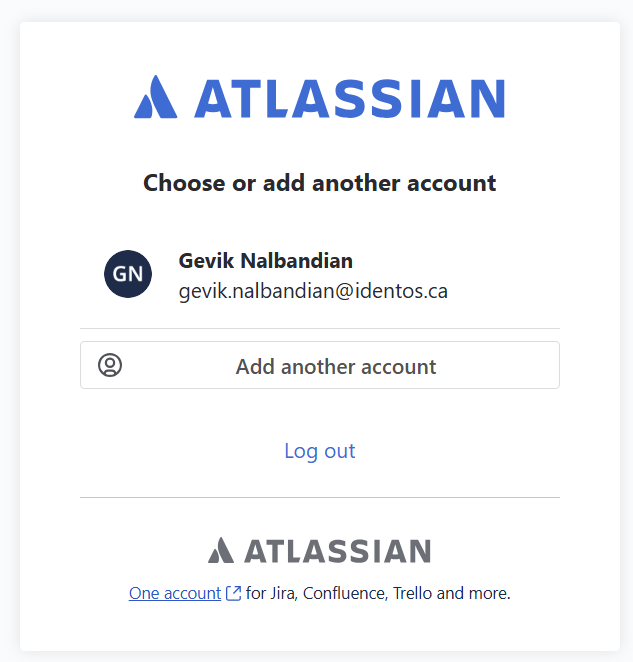
After you authenticate, you'll land on the Atlassian Developer console.
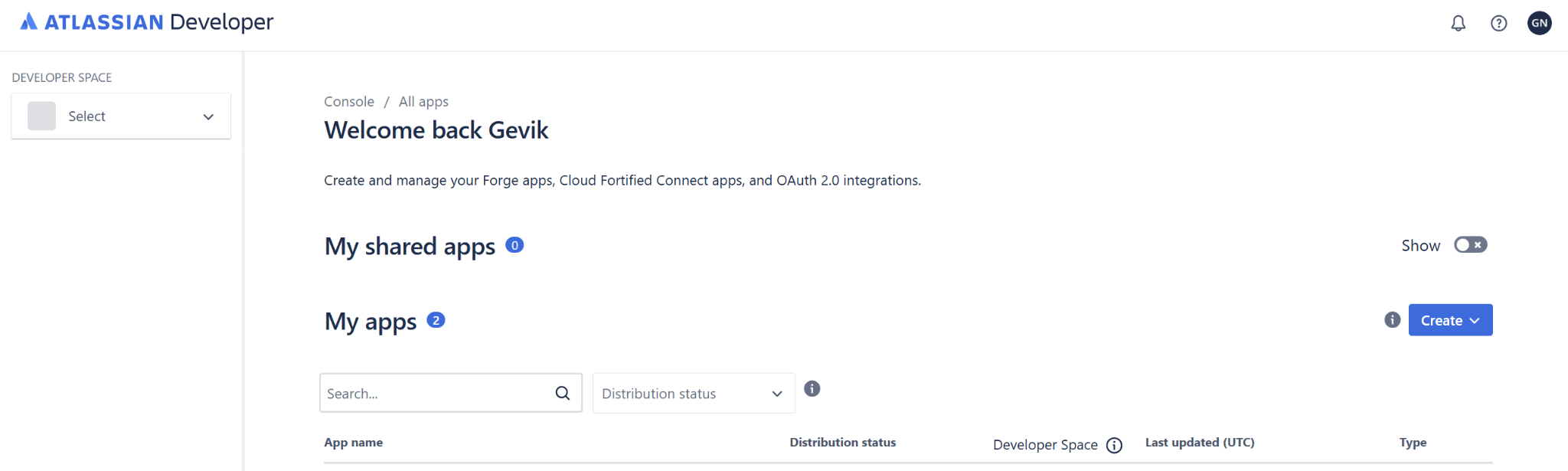
Step 3 — Create an OAuth 2.0 integration
Click Create, then pick OAuth 2.0 integration.
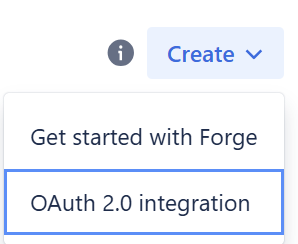
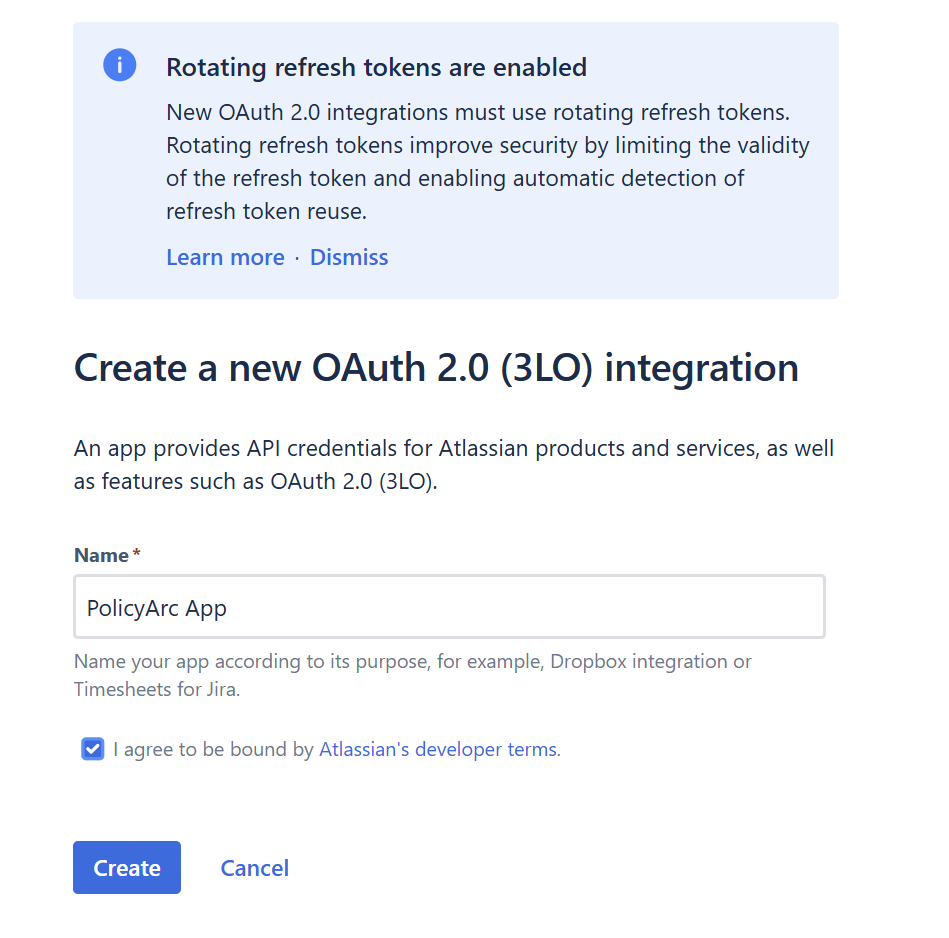
Give the app a name (for example, PolicyArc App), tick I agree to be bound by Atlassian's developer terms, and click Create.
Step 4 — Add the Jira API permission
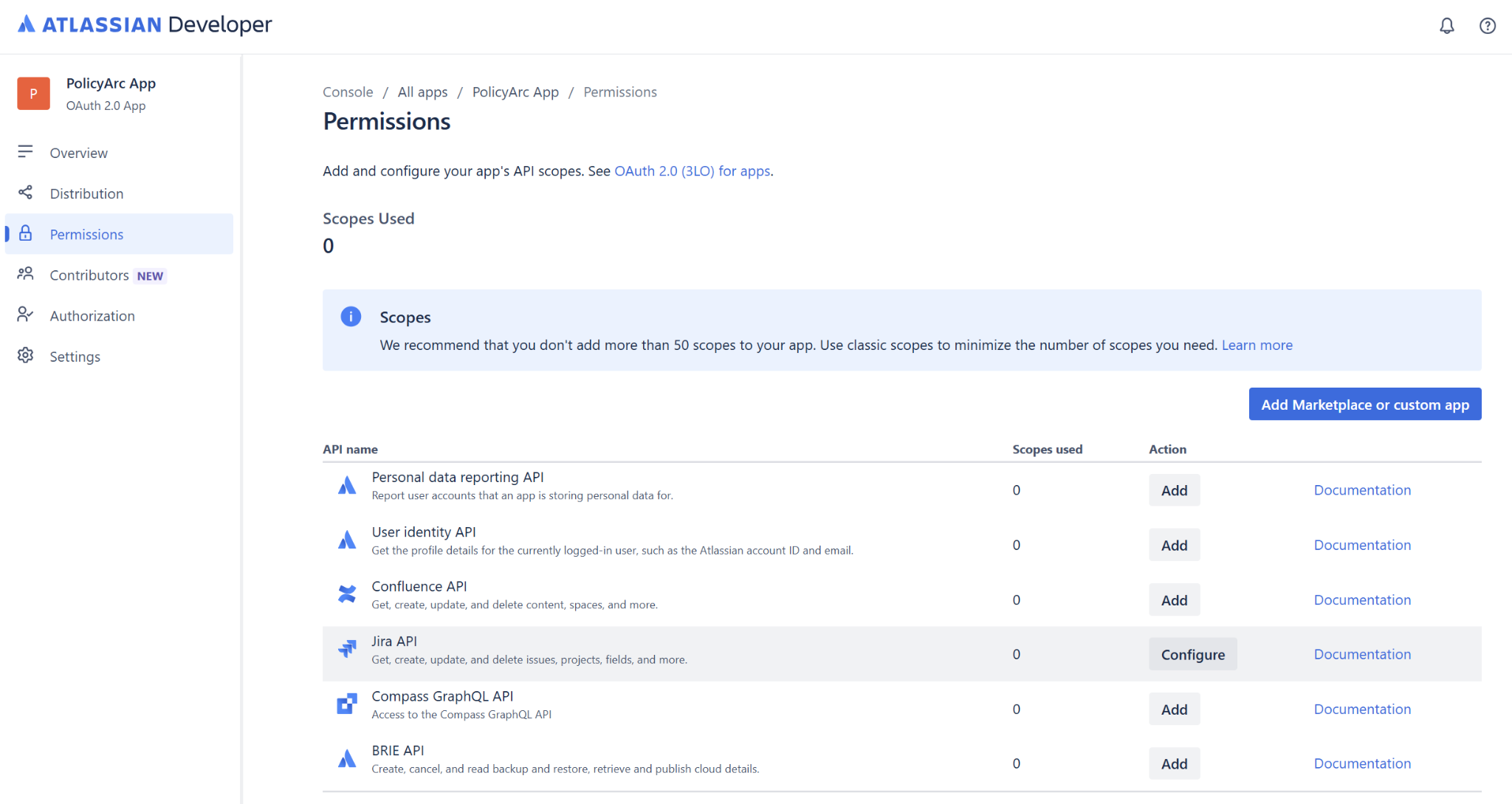
In the left-hand menu, click Permissions. You'll see a list of Atlassian APIs. Find Jira API and click Add (or Configure if you've done this before).
Step 5 — Edit the Jira API scopes (classic)
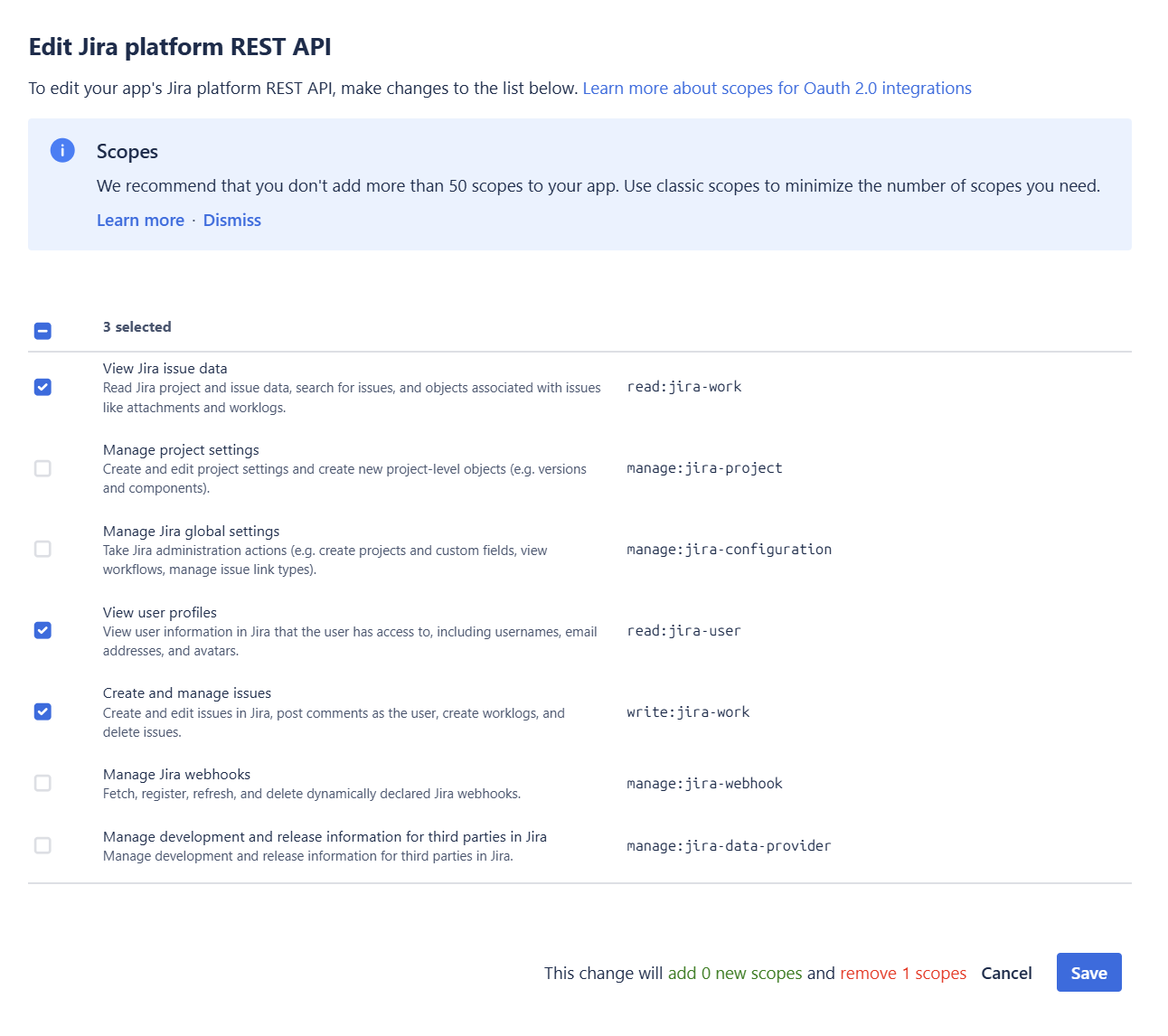
Click Configure → Edit Scopes on the Jira platform REST API row. Stay on the Classic scopes tab and select:
read:jira-work— read issues, projects, search results, attachments, worklogs.read:jira-user— read user profiles (used to build the caller's identity claim).write:jira-work— create, edit, comment on issues; create worklogs; delete issues.
Click Save.
Step 6 — Add the User Identity scope
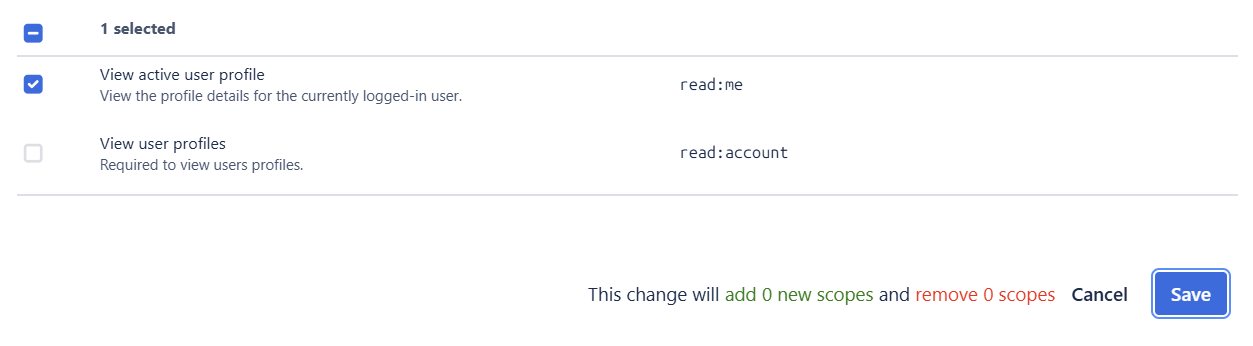
Back on the Permissions page, find User identity API and click Add → Edit Scopes. Select:
read:me— fetch the signed-in user's profile (Atlassian account ID, email).
Click Save.
When both are done your scope summary should look like this:
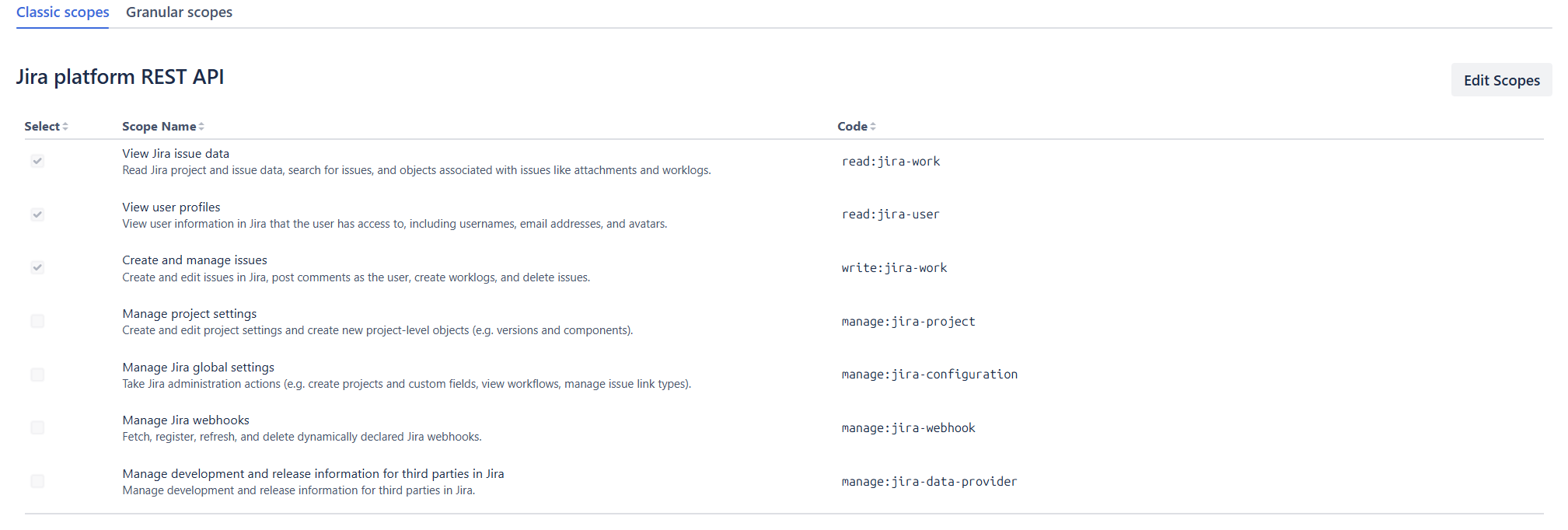
After saving, Atlassian's Authorization URL generator may show two yellow warnings — one about granular scopes, one about Jira Service Management scopes. Both are safe to ignore. PolicyArc uses classic Jira scopes only.
You do not need to add offline_access here. PolicyArc requests it at sign-in time so the user's session can survive beyond one hour — the Atlassian consent screen will say "access your data while offline", which is expected.
Step 7 — Configure the callback URL
In the left-hand menu, select Authorization and click Add next to OAuth 2.0 (3LO).
Paste the Callback URL from the PolicyArc tab you left open in Step 1 — it's the value PolicyArc shows on the Add Identity Provider screen.

Click Save changes.
Step 8 — Capture the Client ID and Client Secret
In the left-hand menu, select Settings. Scroll to the Authentication details section.
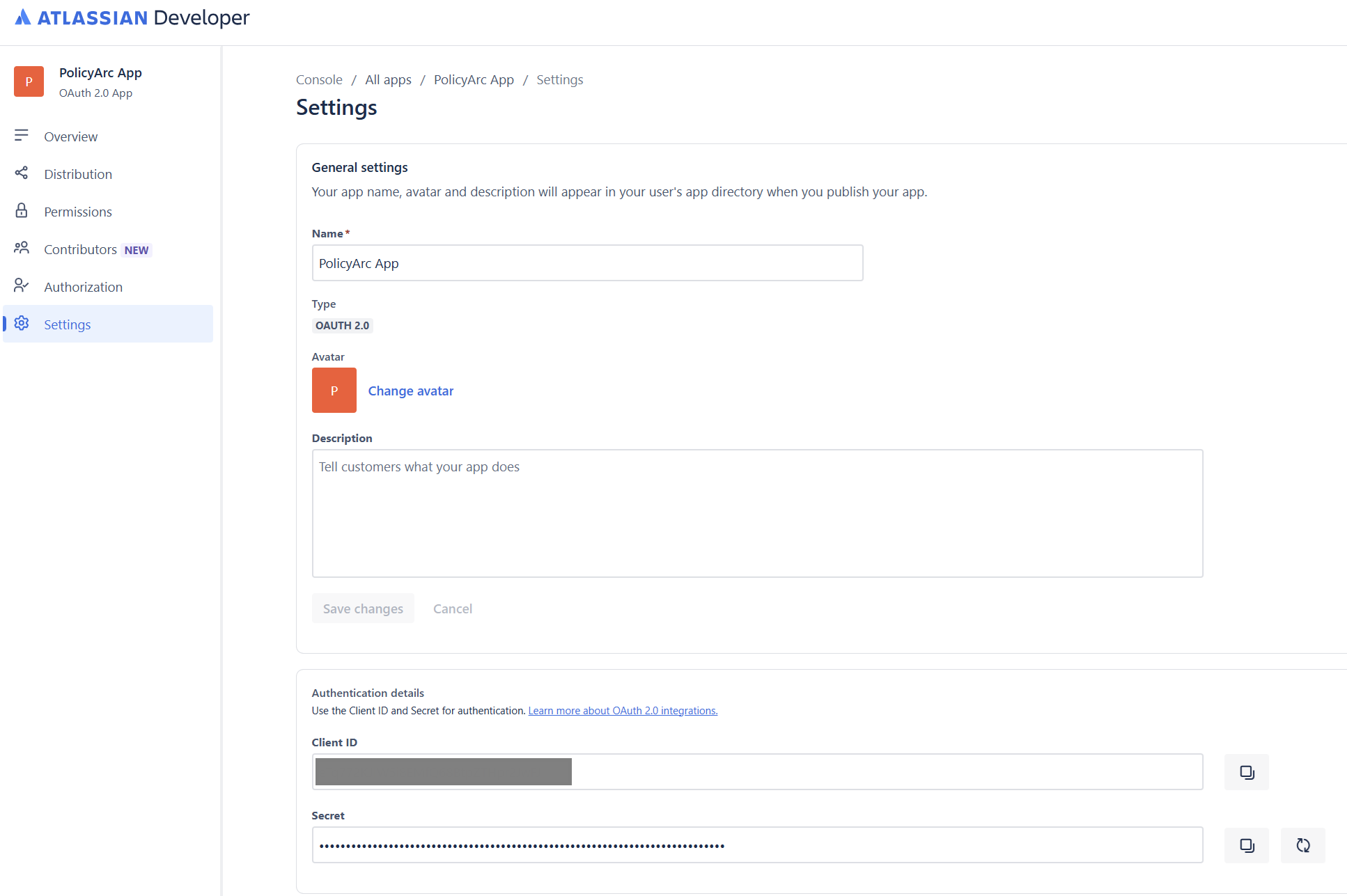
Copy both values — you'll paste them into PolicyArc next.
Step 9 — Finish the IDP in PolicyArc
Switch back to the PolicyArc Admin Portal tab. Paste the Client ID and Client secret into the form.
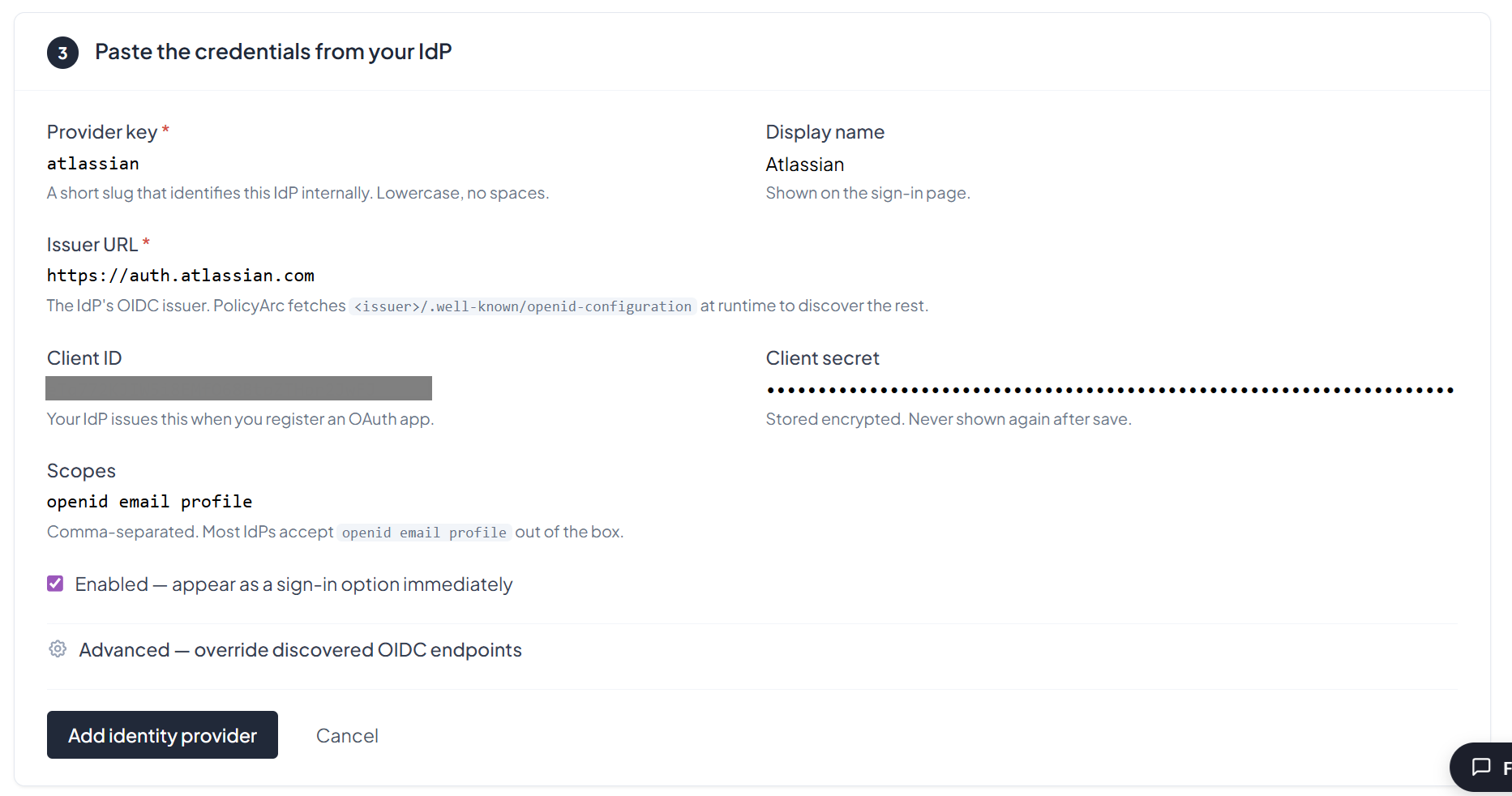
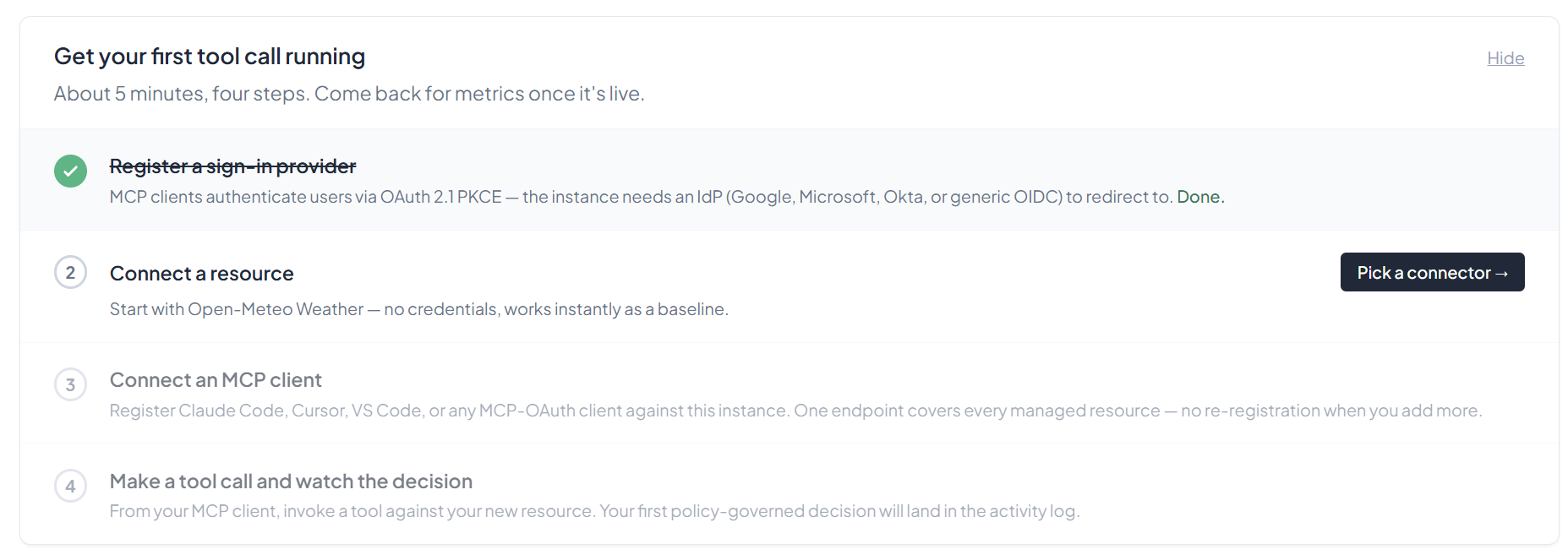
Click Add identity provider. You'll land back on the environment overview with the Atlassian IDP connected and ready to use.
Enabling and disabling an IDP
To temporarily disable the Atlassian IDP without deleting it, open it from the Identity list and toggle Enabled off. Disabled IDPs are hidden from sign-in but their configuration is preserved.
What's next
The Atlassian IDP is now authenticating users. Next, give them a Jira resource to access:
- Recommended: Jira (user passthrough) — forwards each user's own Atlassian OAuth token, so calls act as the signed-in user (not a service account).
- All resource connectors →