Claude Code
Claude Code is Anthropic's terminal-first MCP client. Registration is one command; authentication runs through a browser the first time you use a tool.
You need an environment with at least one IDP and one connector. See Start Here if you're not there yet. Grab the gateway URL for your environment from the Admin Portal's Clients tab — you'll paste it in Step 1 below.
SETUP
Step 1 — Register the PolicyArc gateway
Open a terminal (Windows, macOS Terminal, Linux — doesn't matter which) and run:

The URL above is one example. Yours is unique to your environment — copy it from the Clients tab in the Admin Portal.
You'll see a confirmation that the server was added:

Step 2 — Verify the server registered
Type claude to start Claude Code, then issue the /mcp command. You'll see:
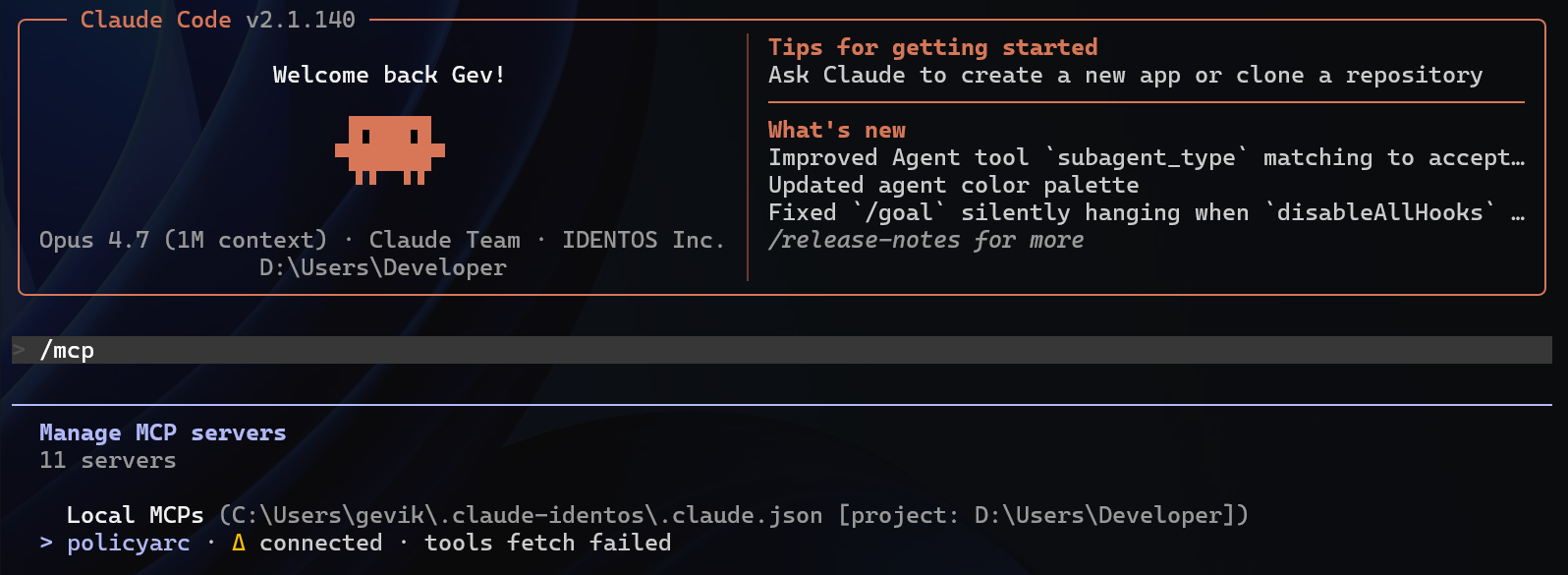
The server is named policyarc because that's the name we used in the claude mcp add command. You can register more than one and name them however you like.
AUTHENTICATION
Step 3 — Trigger the OAuth flow
Navigate to the policyarc MCP entry (usually the first one — look for the > indicator). Press Enter to select it.
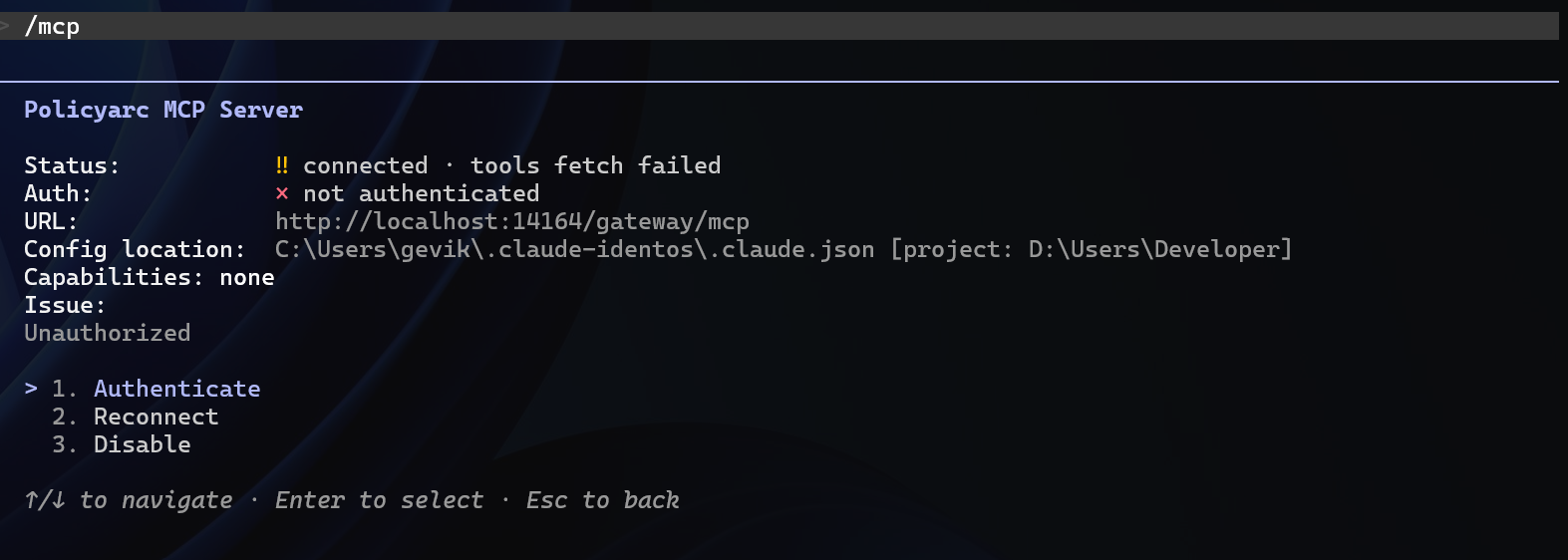
Press Enter again on Authenticate.
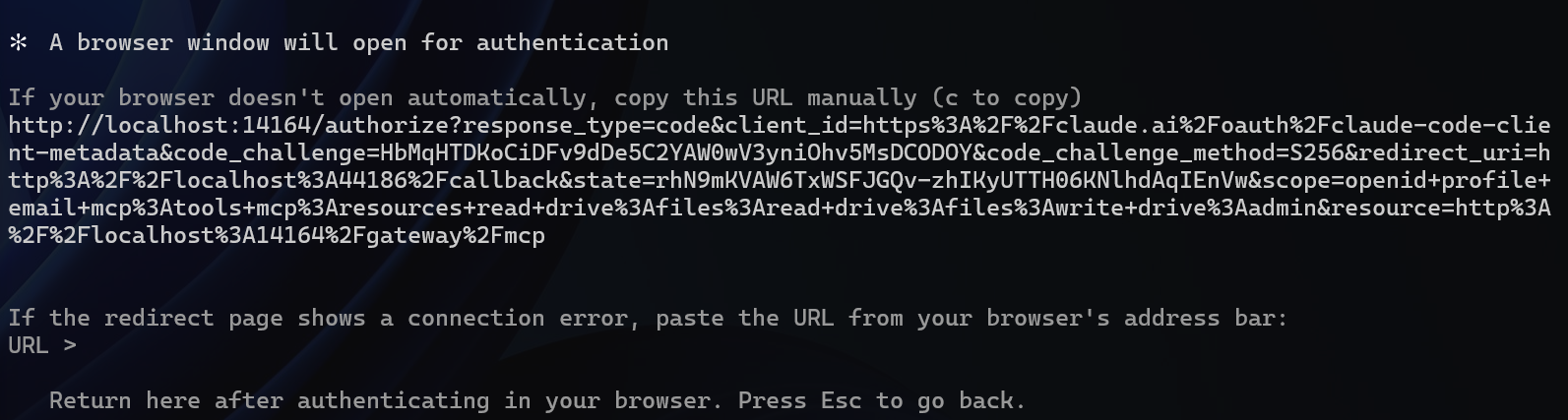
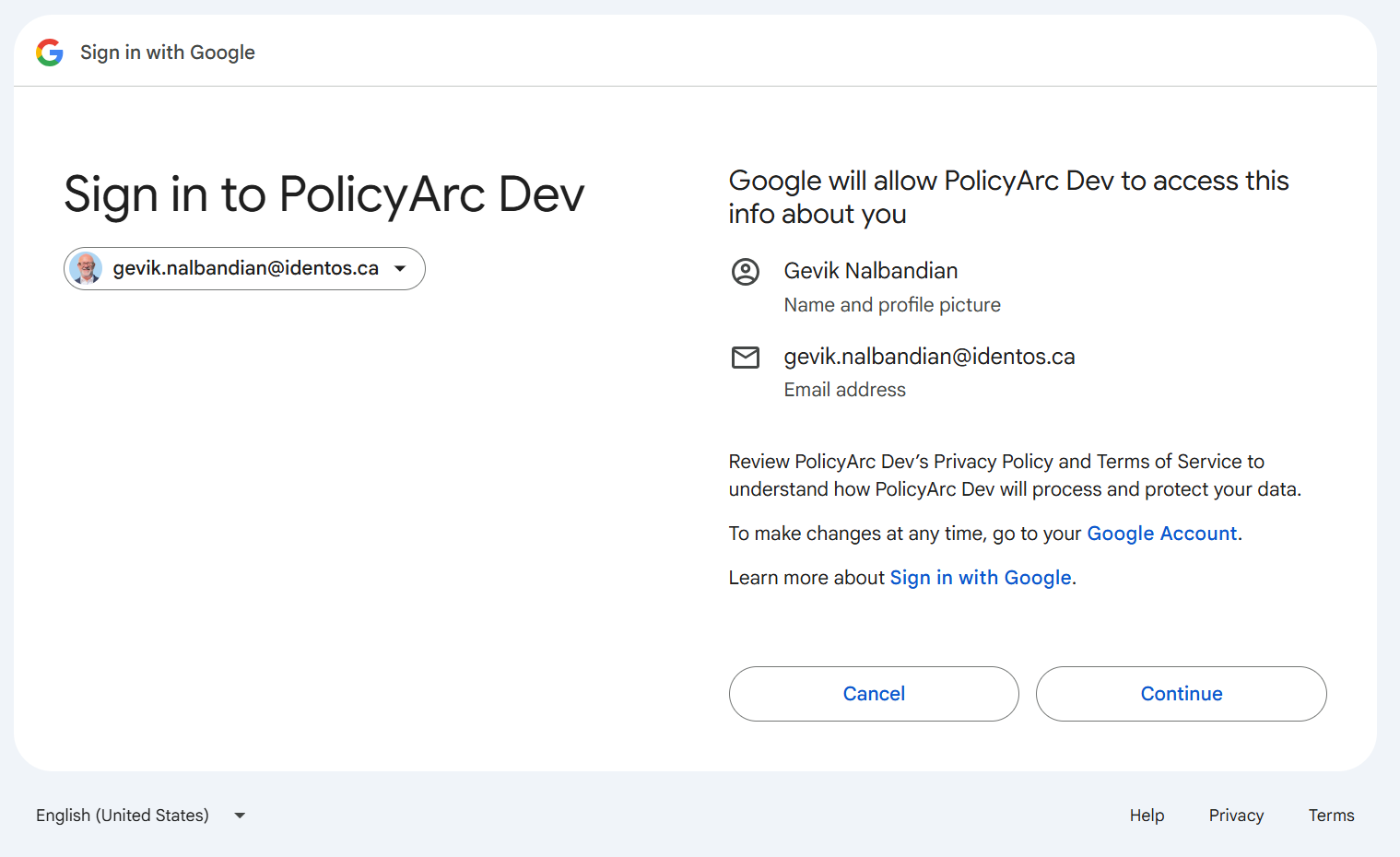
A browser tab opens, walking you through your IDP's sign-in.
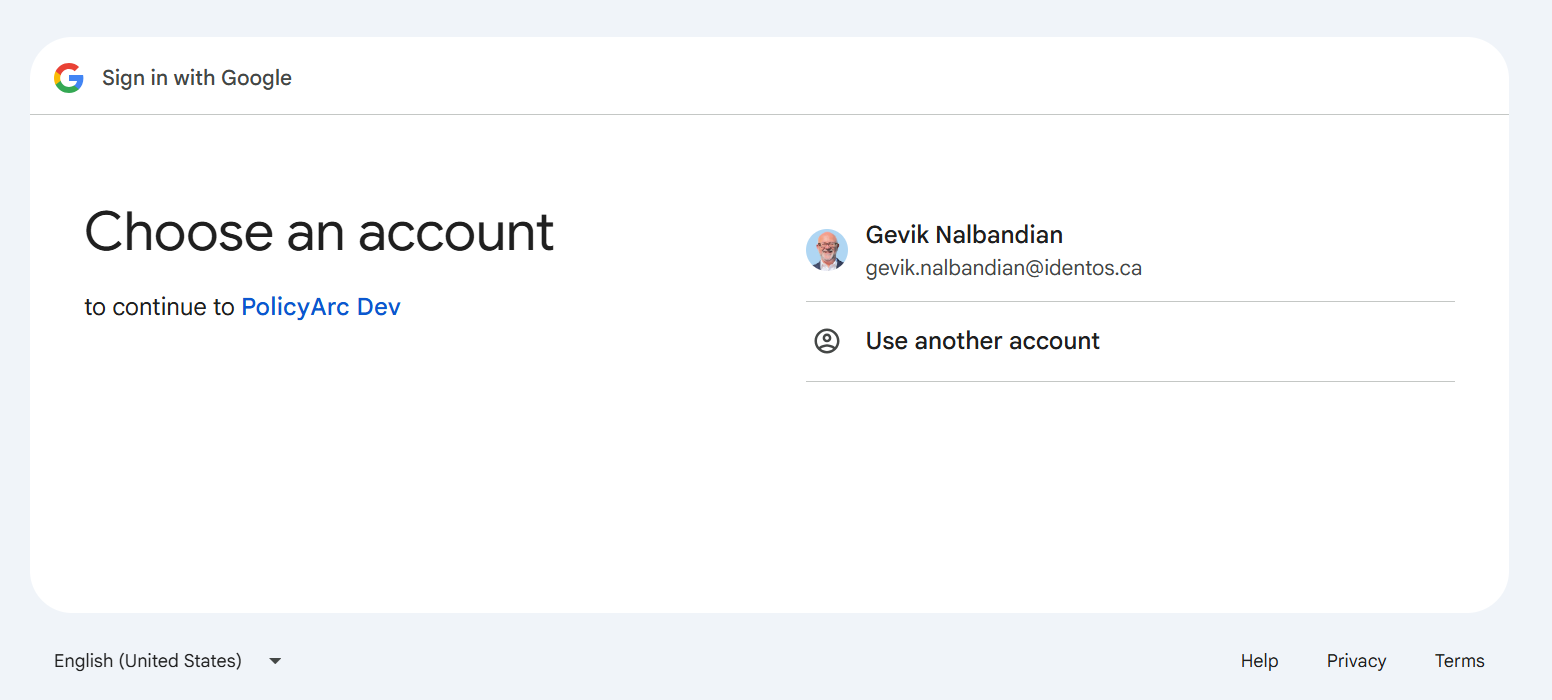
Pick the account to authenticate. The exact screens depend on your IDP and account state.
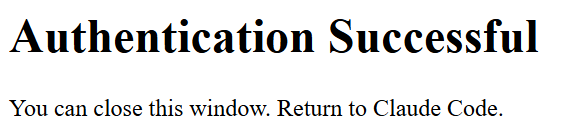
When authentication succeeds, the browser shows:
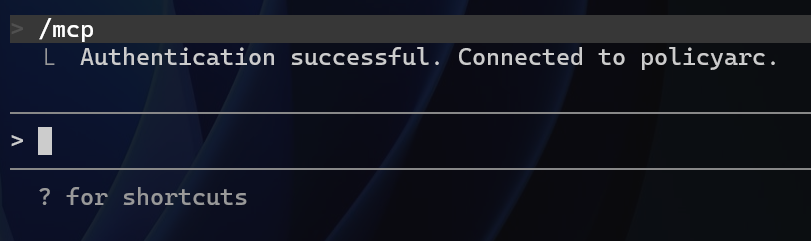
And Claude Code shows:
If you authenticate as the administrator while setting this up, you'll see everything. Once you've verified it works, sign in as a regular user too — that's how you confirm your policies behave the way you expect for the audience you're rolling this out to.
VIEW AVAILABLE TOOLS
While in Claude Code, run /mcp again, select policyarc, and view the tools your user is allowed to call.

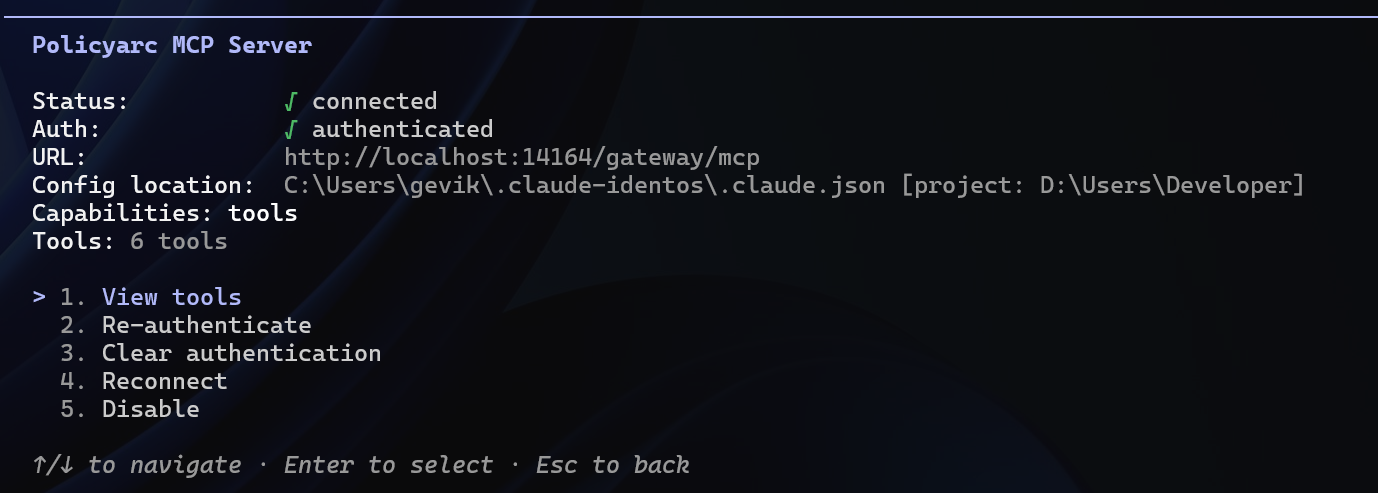
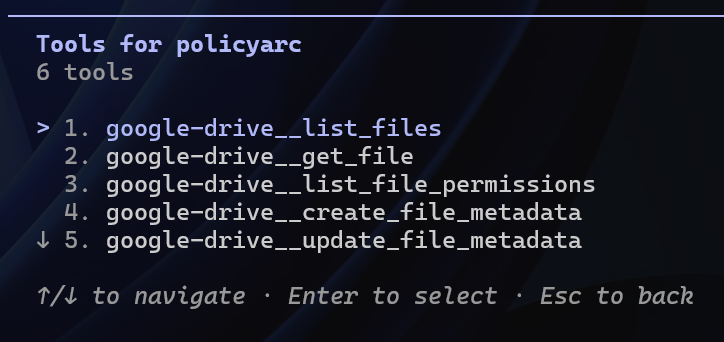
The list reflects the user's policy at this moment. As you change policy data — adding scopes, denying a tool, applying a trust tier — this list changes on the next session.
USING THE TOOLS
Ask Claude to do something that maps to one of the tools. For example, with the Google Drive connector you might ask it to list recent files or summarize a doc.
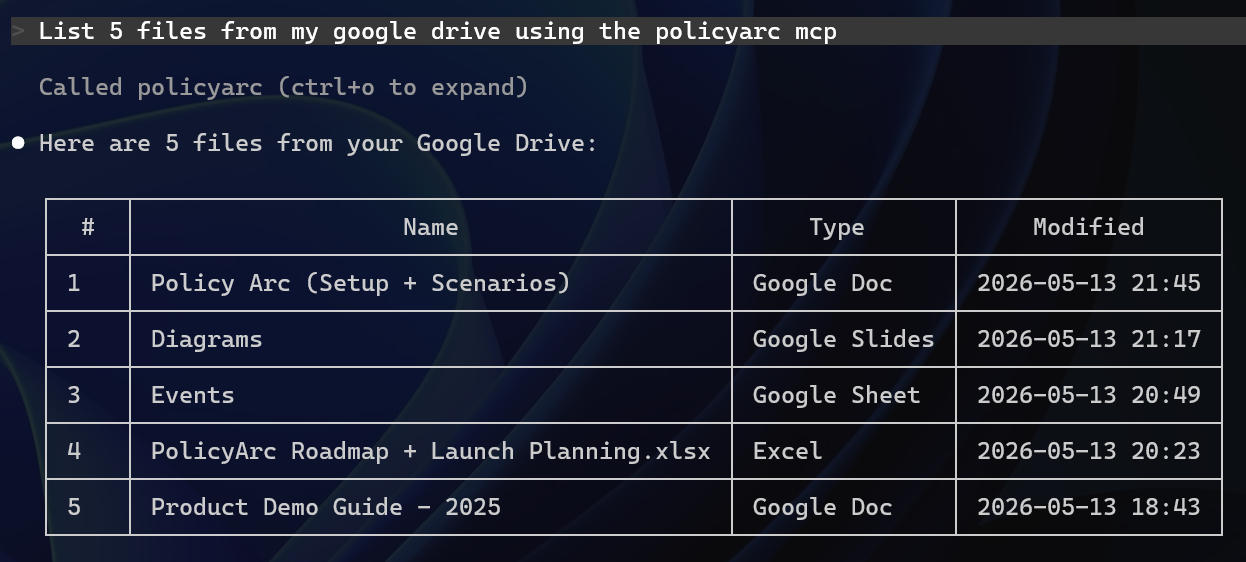
Every call lands an audit row in Admin → Audit Log with the user, the tool, the scopes, the decision, and the timestamp. That's the proof your policy is enforcing.
Troubleshooting
/mcpshows the server but auth fails immediately — the gateway URL probably points at an environment whose IDP isn't fully wired. Open the Admin Portal and confirm the IDP is Enabled.- Authentication succeeds but no tools appear — your user is authenticated but has no scopes. Check Admin → Policy Data and confirm the user's role grants at least one tool scope.
- You're stuck on the browser sign-in screen — re-run
/mcp, re-select the server, and choose Reauthenticate to start the flow over.