Cursor
Cursor registers MCP servers through its Tools & MCPs settings page, backed by an mcp.json file. Authentication is one click after the config is in place.
You need an environment with at least one IDP and one connector. See Start Here if you're not there yet. Grab the MCP snippet for your environment from the Admin Portal's Clients tab.
SETUP
Step 1 — Open Tools & MCPs
Start Cursor (with or without a project open) and click the gear (Settings) icon.

Select Tools & MCPs.
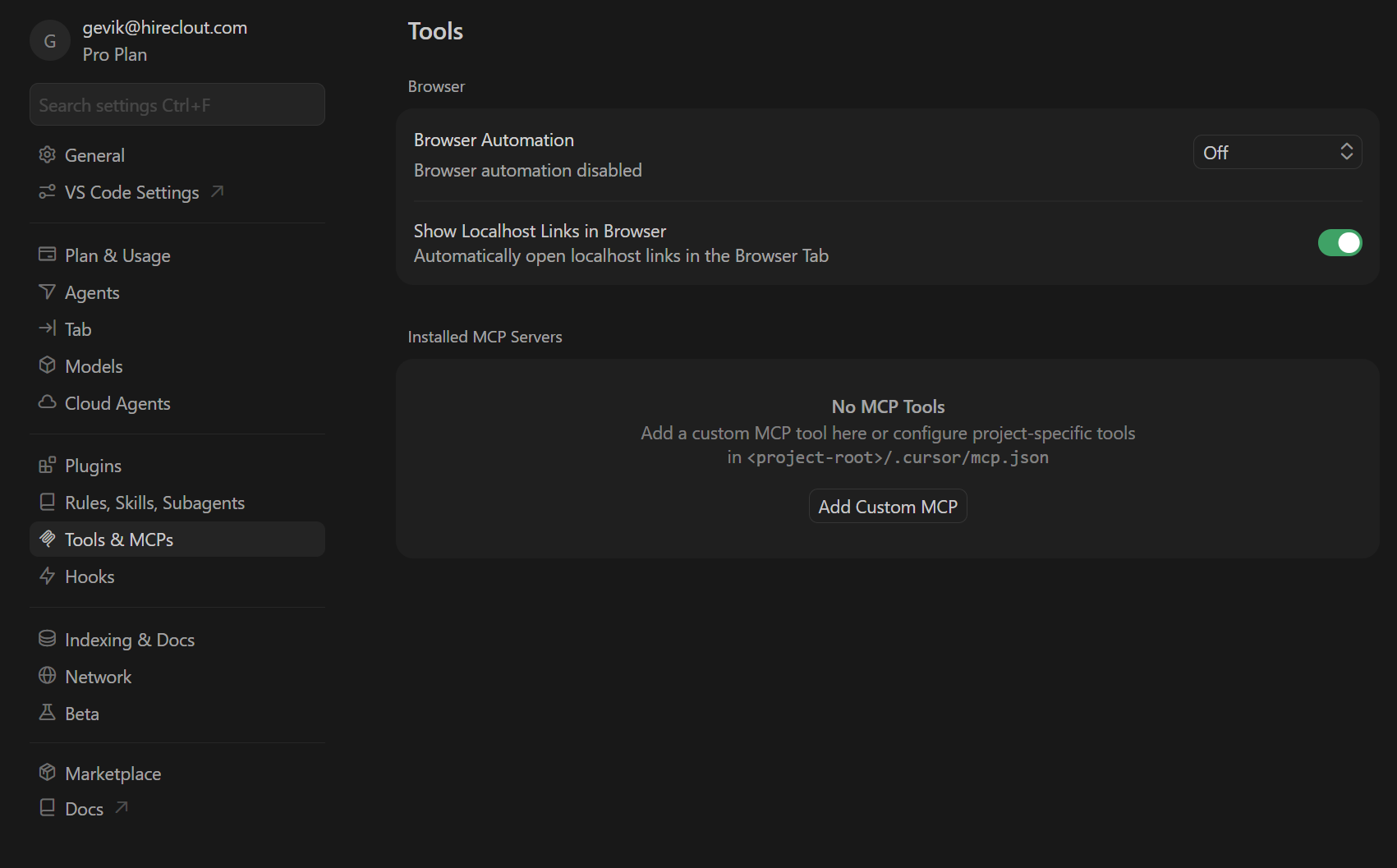
Step 2 — Add a Custom MCP
Click Add Custom MCP. If you've never added MCPs before, the mcp.json that opens will look like this:
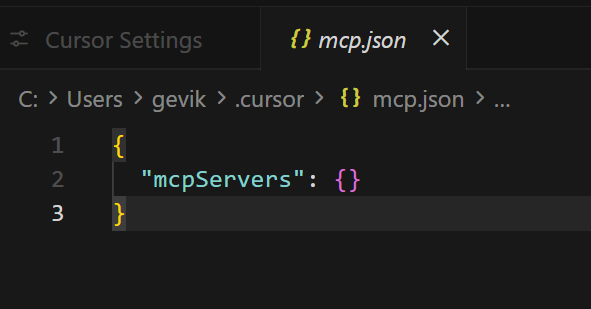
Step 3 — Paste the PolicyArc snippet
In the Admin Portal, open the Clients tab and copy the Cursor snippet:
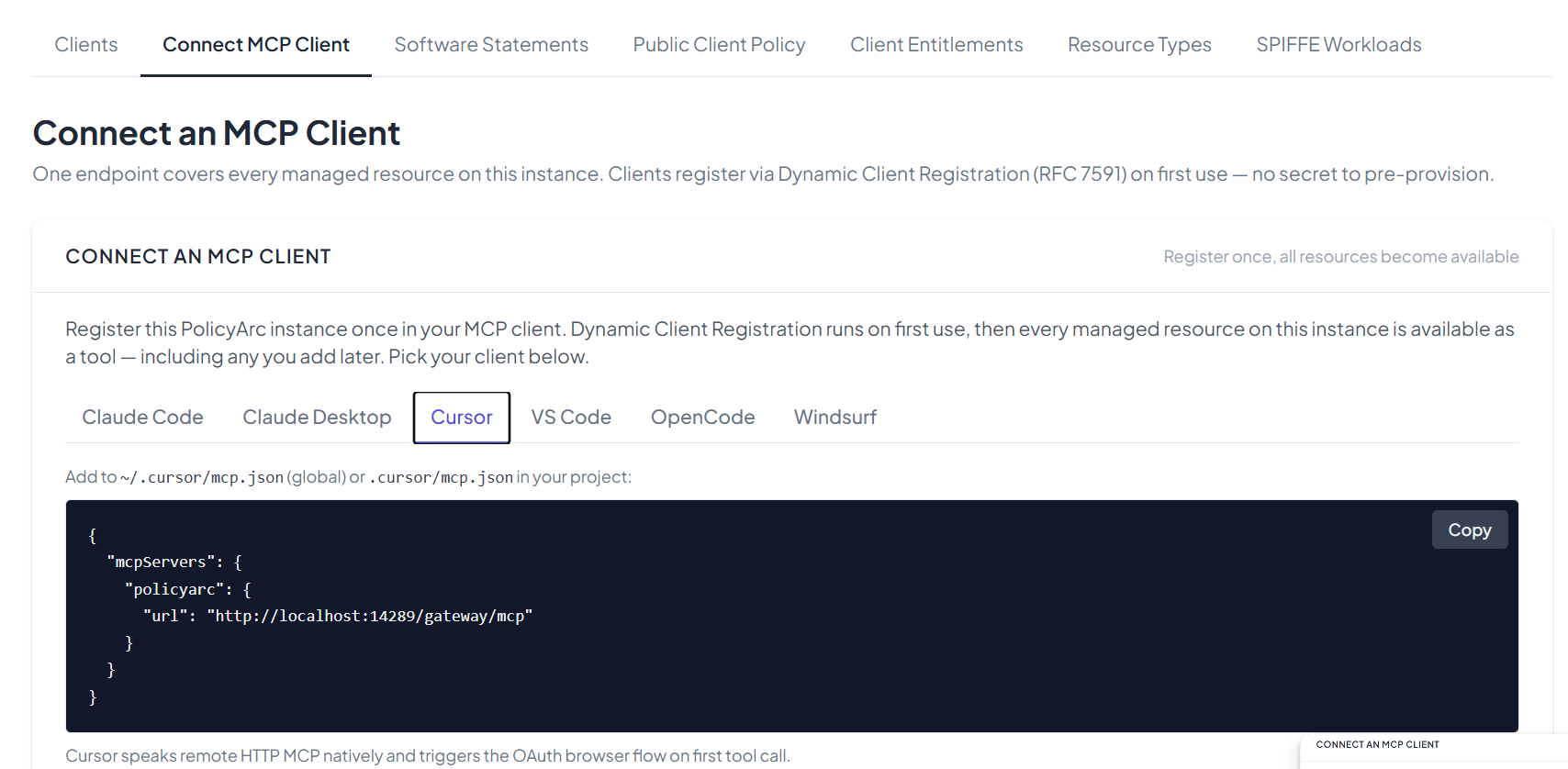
The snippet has this shape (your URL will be different):
{
  "mcpServers": {
    "policyarc": {
      "url": "http://localhost:14289/gateway/mcp"
    }
  }
}
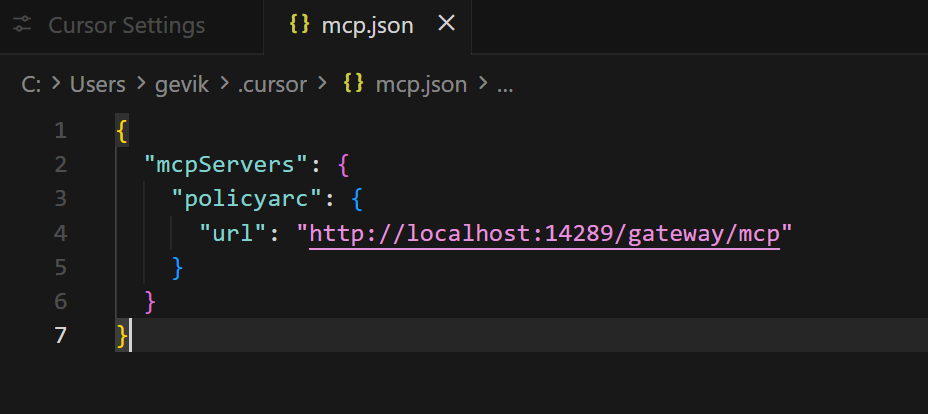
Paste it into mcp.json and save. It should look like this:
AUTHENTICATION
Step 4 — Connect
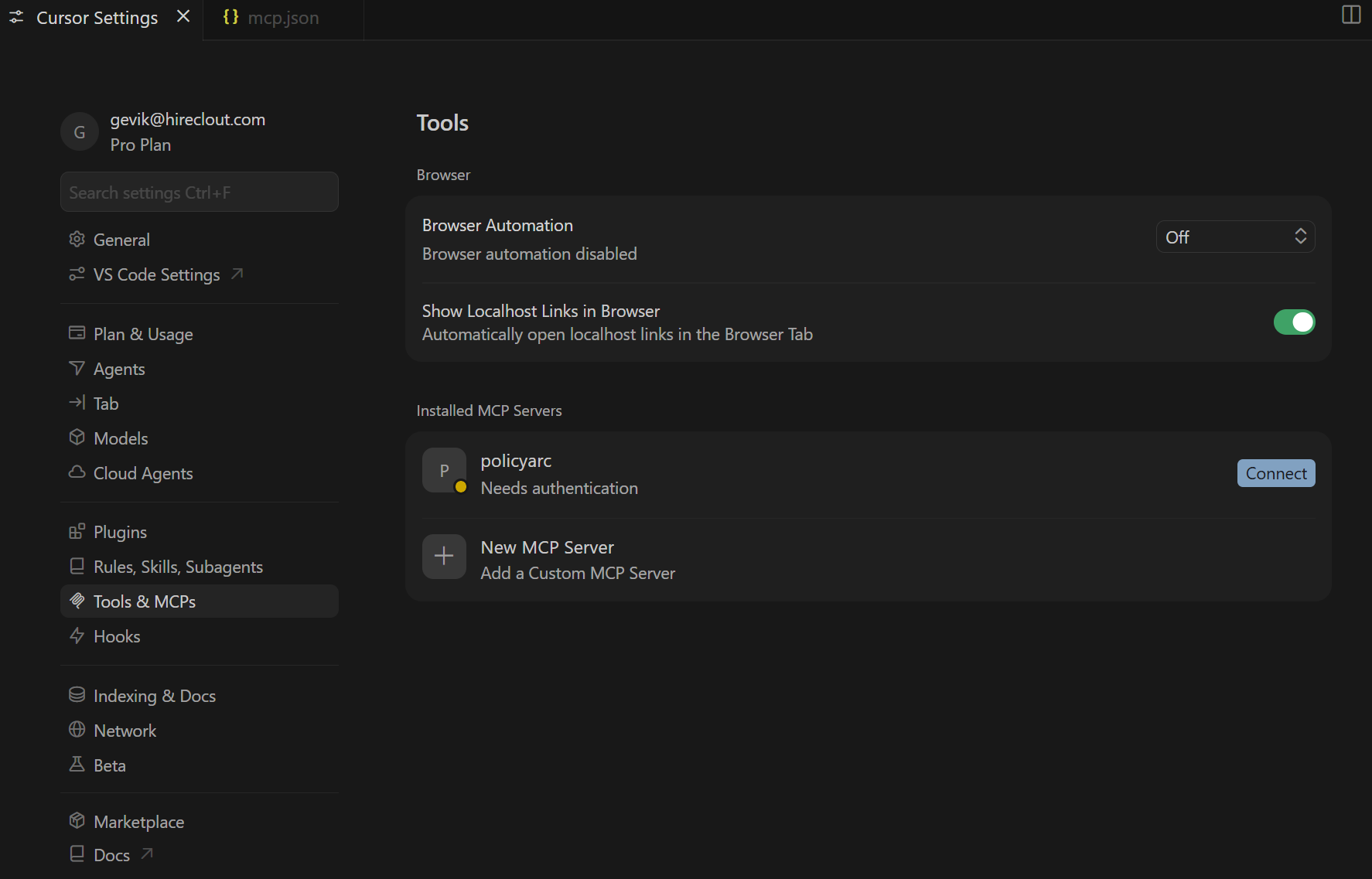
Switch back to the Cursor Settings tab (it should still be open). Click Connect next to the policyarc entry.
A browser tab opens, walking you through your IDP's sign-in. Pick the account you want to authenticate.
When the flow completes, the Tools panel shows the server as connected:
VIEW AVAILABLE TOOLS
Expand the policyarc entry to see the tools your user is allowed to call.
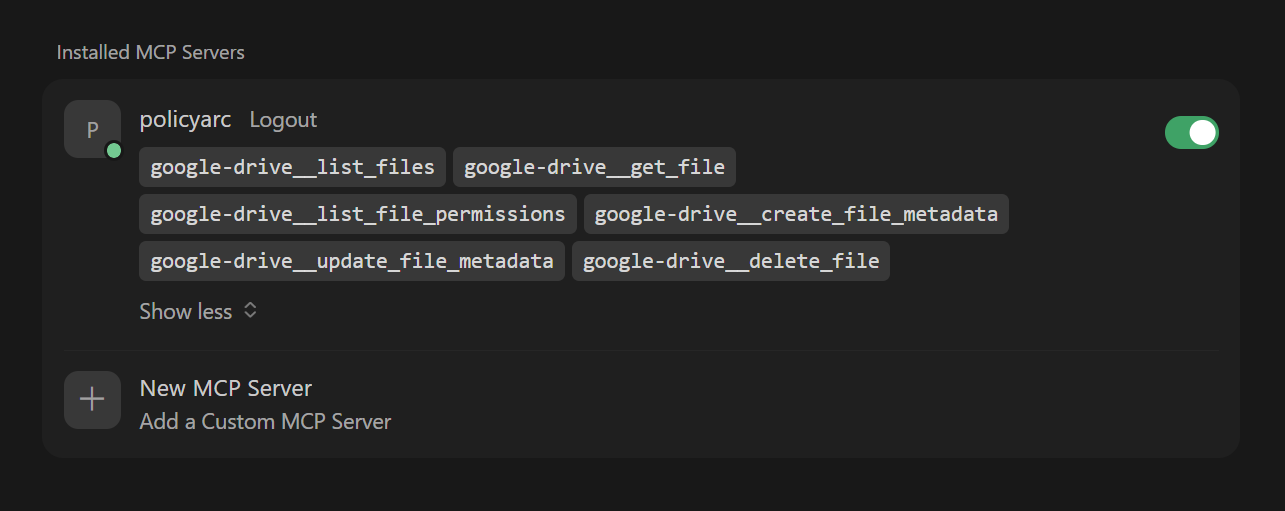
The list reflects the user's policy at this moment. As you change policy data, this list changes on the next refresh.
USING THE TOOLS
Ask Cursor's agent to do something that maps to one of the tools. For example, with the Google Drive connector you might ask it to find a doc or summarize one you've named.
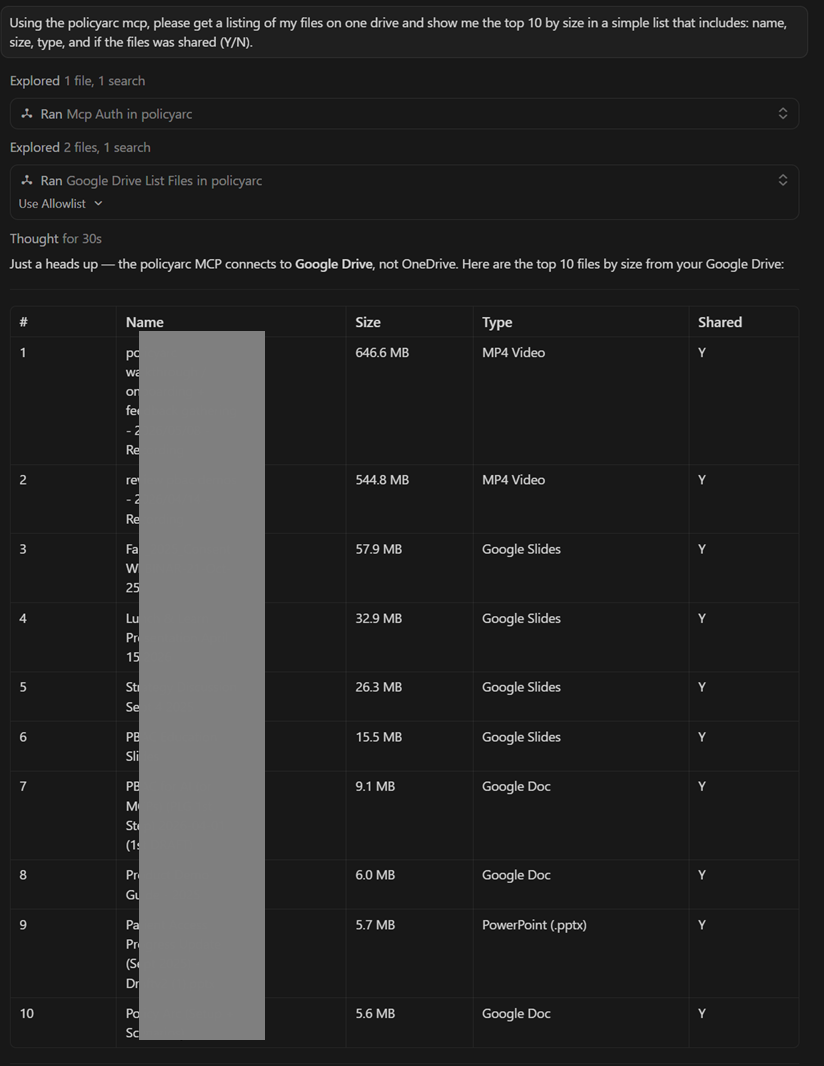
Every call lands an audit row in Admin → Audit Log.
Troubleshooting
mcp.jsonopens to a different file — Cursor uses the workspacemcp.jsonif one exists, falling back to the user-level file. Add the snippet wherever you want the registration to apply.- Connect button does nothing — confirm the URL in
mcp.jsonmatches the one in the Admin Portal Clients tab. A trailing slash difference is enough to break it. - Tools are missing after sign-in — your user is authenticated but has no scopes. Check Admin → Policy Data.