Google Calendar connector
The Google Calendar connector exposes Calendar v3 as a set of MCP tools (list events, get event, create / update / delete event, list ACLs) through the PolicyArc gateway. Every tool call is policy-checked before it reaches Google.
You must have a Google identity provider connected first. The connector reuses the same OAuth credentials. See Connect Google IDP.
Step 1 — Open the Add Connector screen
Open Resources → Add connector (or click Pick a connector from the environment dashboard).
In the Unlocked by your identity providers section, the Google Calendar template will show a green border once the Google IDP is connected.
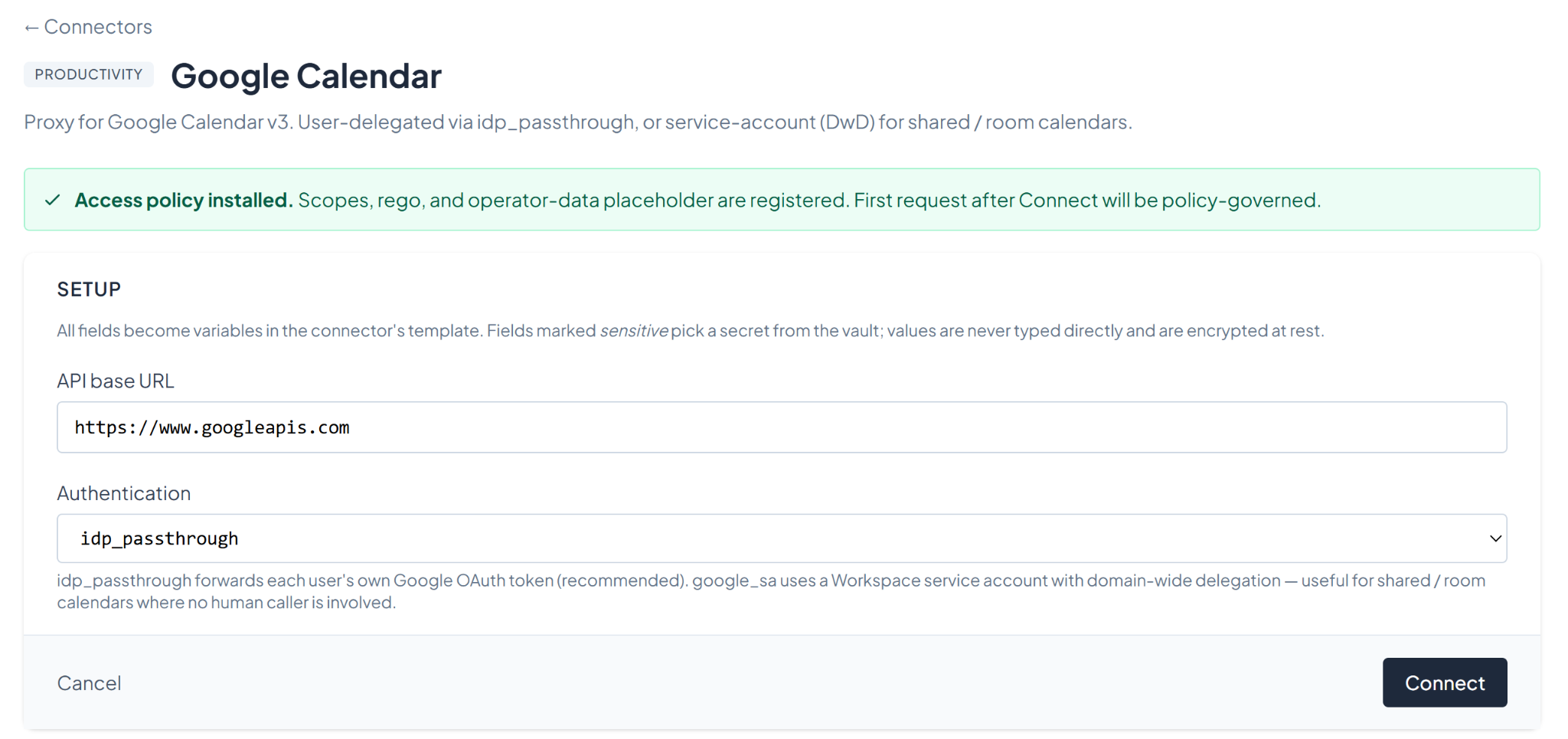
Click Google Calendar.
Step 2 — Choose the authentication mode
Google Calendar supports two authentication modes:
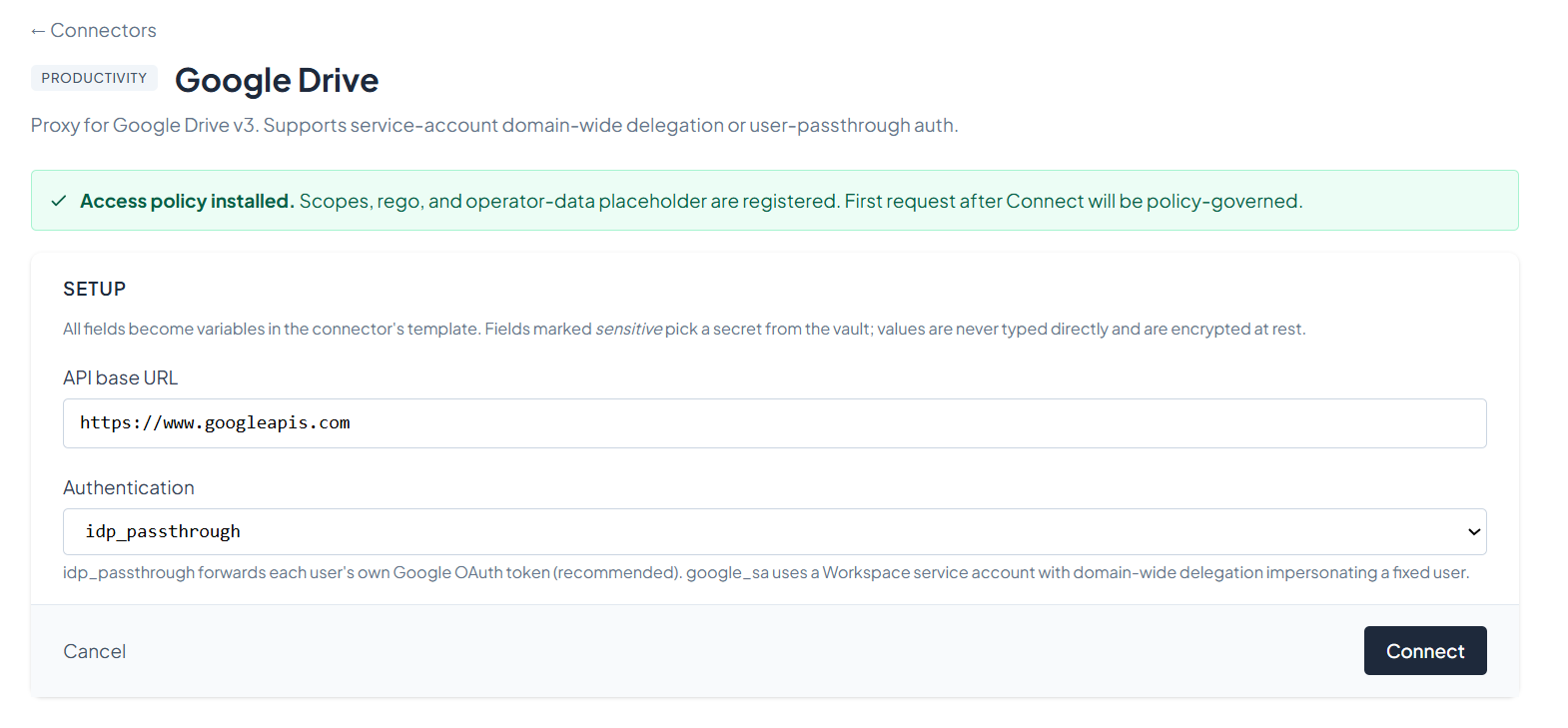
| Mode | What it does | When to use it |
|---|---|---|
idp_passthrough (recommended) | Forwards each user's own Google OAuth token. Every call is made as the signed-in user. | Most cases. Users only see their own calendars; Google's per-user permissions apply naturally. |
google_sa | A Workspace service account with domain-wide delegation impersonates a fixed user for every call. | Shared / room calendars where no human caller is involved — for example, a scheduling bot that books meetings on behalf of a fixed user. |
For this walkthrough, pick idp_passthrough and click Connect.
Step 3 — Confirm the connector
After connecting, you'll see the connector's status screen with the available Calendar tools. The connector is policy-governed from the first request.
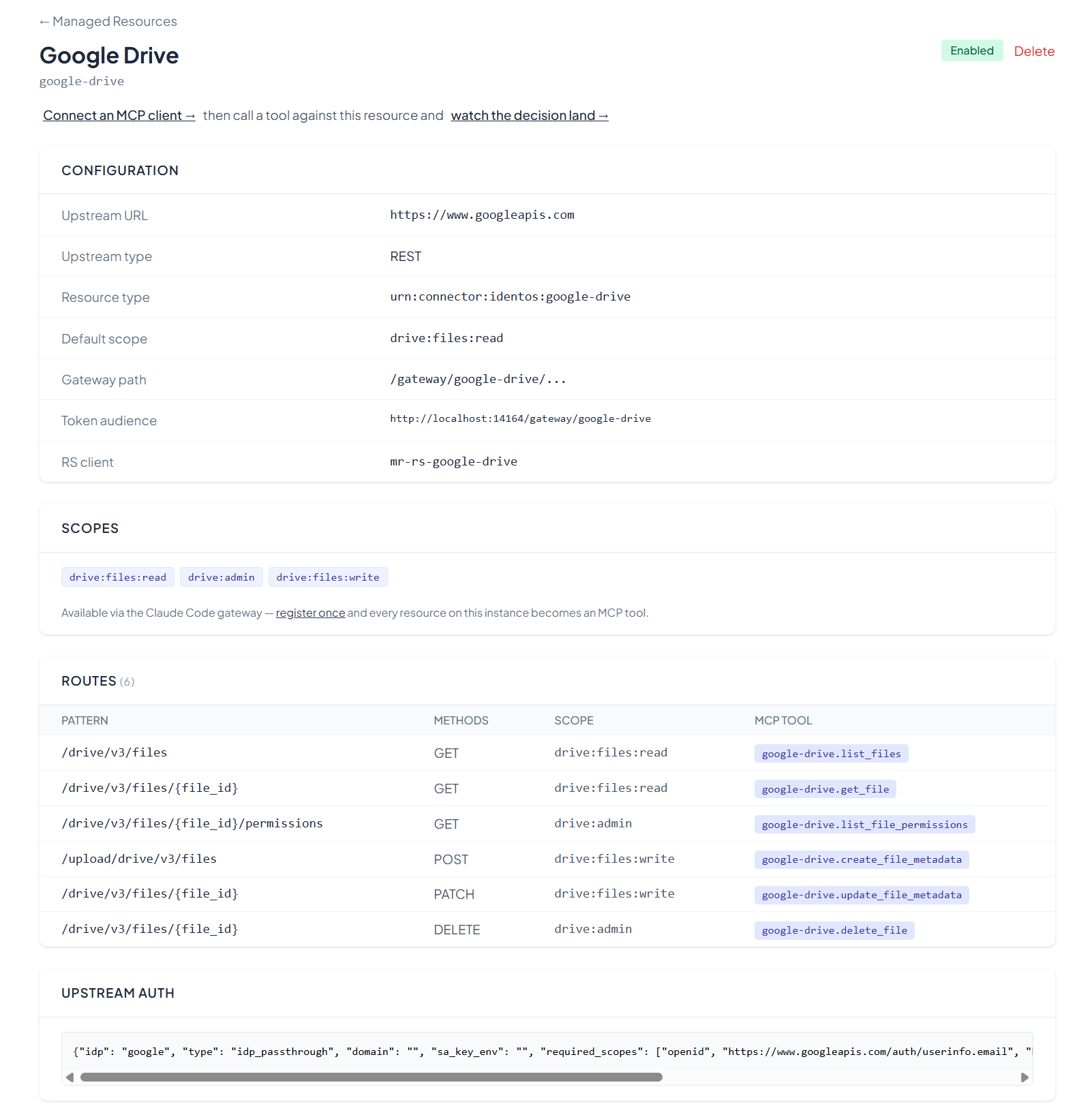
You can return to this view any time from the Resources menu by clicking View on the Google Calendar entry.
The default idp_passthrough mode requests Google's calendar scope on first sign-in. To list ACLs (for shared / team calendars) you also need calendar.acls.readonly — PolicyArc requests it automatically. If your Google OAuth consent screen is in production mode and listing scopes are filtered, add https://www.googleapis.com/auth/calendar.acls.readonly to your OAuth client.
What's next
The Google Calendar tools are now on your gateway. Pick an MCP client to wire up:
- Recommended: Claude Code — fastest path to verify end-to-end.
- All MCP clients →
The google_sa walkthrough — service account creation, domain-wide delegation, scope authorization in the Workspace admin console — instructions are coming soon. Contact us if you need it now.