Gmail connector
The Gmail connector exposes Gmail v1 as a set of MCP tools (list messages, get message, send, create / send draft, search by query) through the PolicyArc gateway. Every tool call is policy-checked before it reaches Google.
Unlike Drive and Calendar, Gmail is user-scoped only — the connector forwards each user's own OAuth token (idp_passthrough). There's no service-account mode: Google does not permit a Workspace service account to read or send mail on a user's behalf without per-user domain-wide delegation, and PolicyArc keeps that boundary explicit.
You must have a Google identity provider connected first. The connector reuses the same OAuth credentials. See Connect Google IDP.
Step 1 — Open the Add Connector screen
Open Resources → Add connector (or click Pick a connector from the environment dashboard).
In the Unlocked by your identity providers section, the Gmail template will show a green border once the Google IDP is connected.
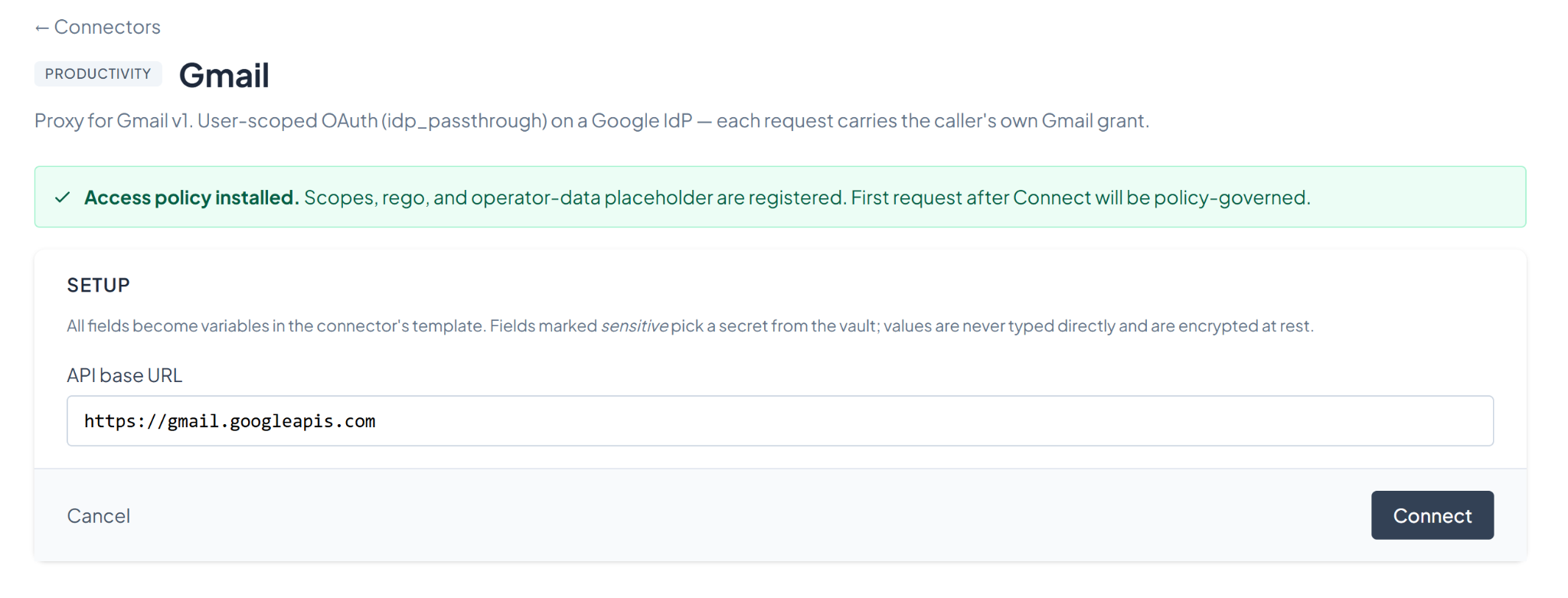
Click Gmail.
Step 2 — Connect
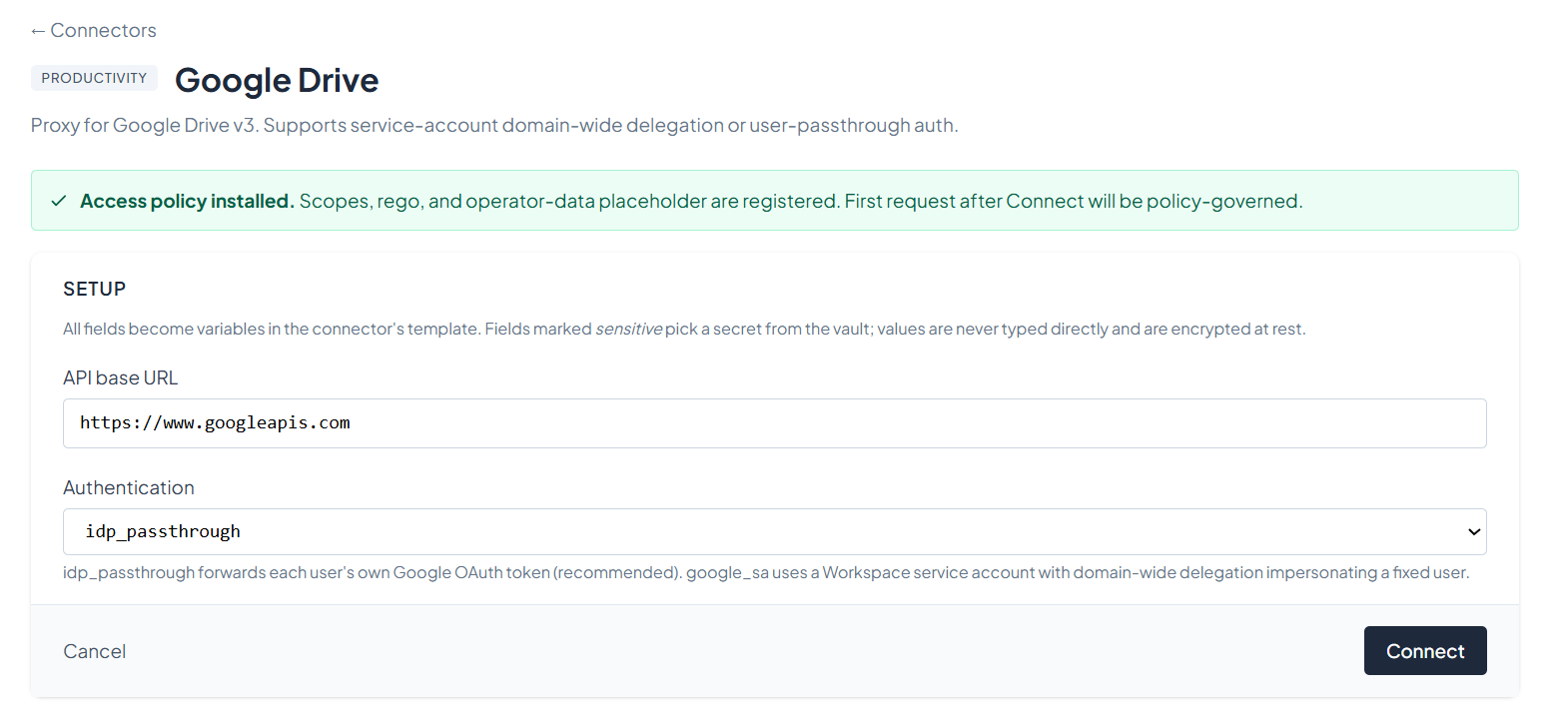
Gmail's setup form has a single field — the API base URL, pre-filled with https://gmail.googleapis.com. Leave it as-is and click Connect.
The send_message and create_draft tools accept a structured input (to, subject, body) instead of asking the caller to hand-build an RFC 822 MIME blob. PolicyArc's request-body composer assembles the MIME message and base64url-encodes it for Gmail's wire format. The caller doesn't see the encoding.
Step 3 — Confirm the connector
After connecting, you'll see the connector's status screen with the available Gmail tools. The connector is policy-governed from the first request.
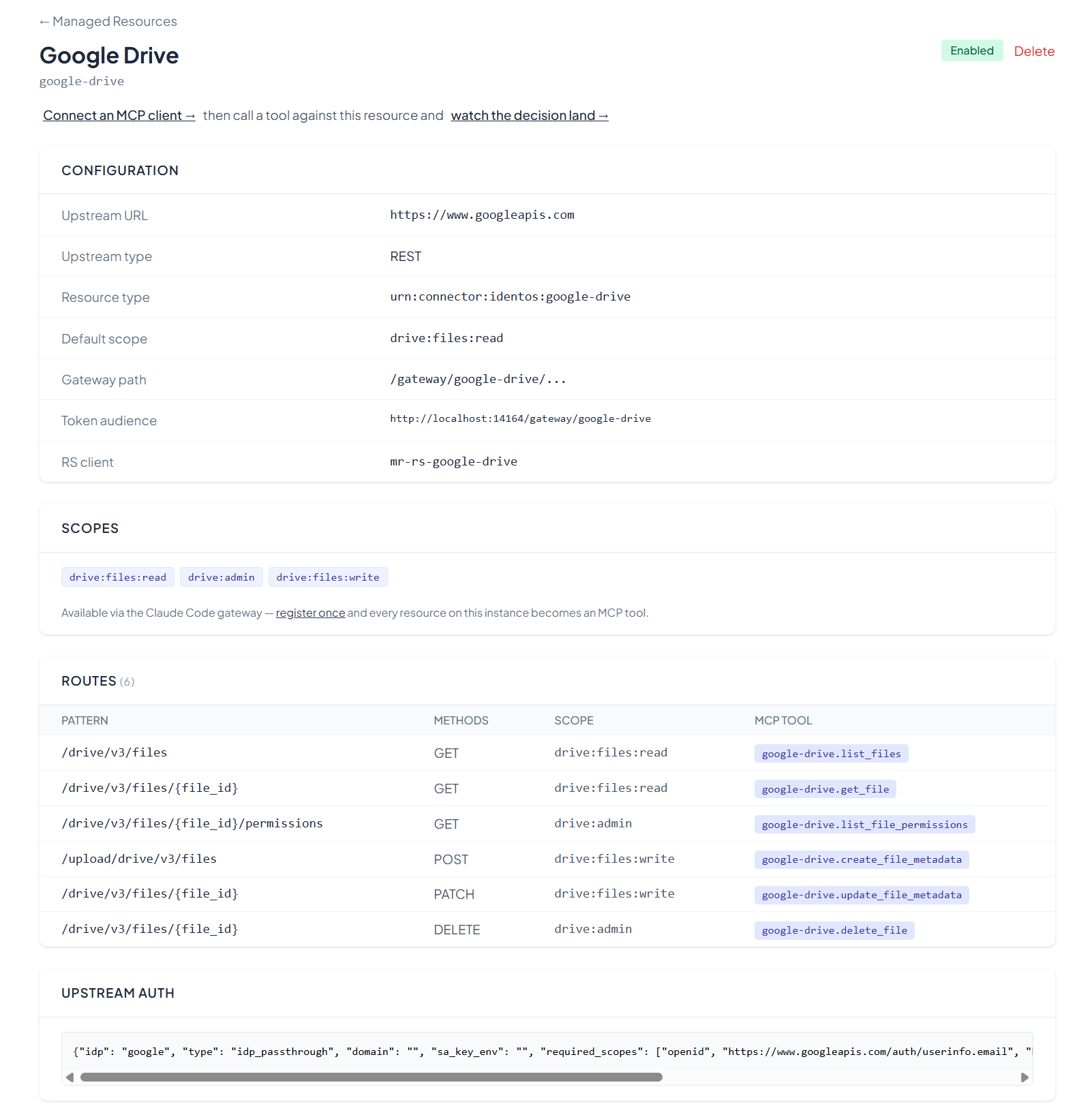
You can return to this view any time from the Resources menu by clicking View on the Gmail entry.
The connector requests Gmail's read, send, and modify scopes (gmail.readonly, gmail.send, gmail.modify) on first sign-in. If your Google OAuth consent screen is in production mode, ensure those scopes are listed on the OAuth client's consent screen configuration in Google Cloud Console.
What's next
The Gmail tools are now on your gateway. Pick an MCP client to wire up:
- Recommended: Claude Code — fastest path to verify end-to-end.
- All MCP clients →